ScoreStudio ProOBS live stream
Table tennis · OBS · YouTube and Twitch
Table tennis scoreboard for OBS, with TV-style overlays
Streaming your club’s league matches no longer has to look homemade. ScoreStudio Pro puts a TV-style scoreboard on top of your camera feed that updates with every point, and you add it to OBS once, with a single browser source.

How to add it
One browser source and you’re done
No OBS plugins to install and no new scenes for each moment of the match. You set it up once and it works all season.
-
1
Add the source
In OBS, in your match scene, click + under Sources and choose Browser. Name it, for example, “Scoreboard”.
-
2
Paste the address
In URL enter
http://127.0.0.1:8765/obs, with width 1920 and height 1080. The address is also in the app, with a button to copy it. -
3
Turn on the output
In the match panel, click Turn on OBS output. Until then nothing appears in the stream, so no scoreboard sneaks in too early.
That single source switches by itself between the scoreboard, end of game, timeout, end of match and the line-up. The app and OBS run on the same Mac.
Five overlays
Choose the look of your broadcast
They change the shape, not just the color. Each one comes with colors designed to read well over any video, and you can use your own.
 Glass
 TV
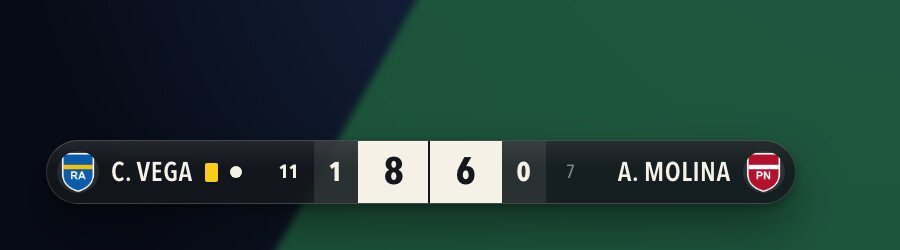 Inline
 Light
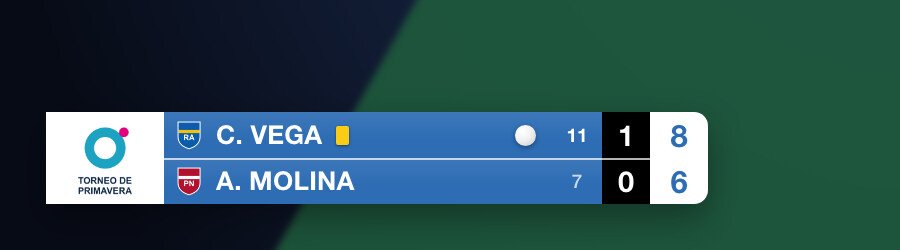 Tournament
, the championship-style overlay
The event logo on the left and, in team matches, the club or country codes with the matches won above.
Crest, flag or shirt
Next to each player’s name: all three, two, one or none. You drag the crests in from the Finder once and they appear everywhere.
Everything that happens at the table
Points, games, serve, cards and timeout. In team matches, the team match score above the overlay too.
Automatic screens
The stream changes by itself at every moment of the match
They appear when you confirm in the app that the game or the match is over, not on the last point. So a result that later needs correcting never goes on air.
-
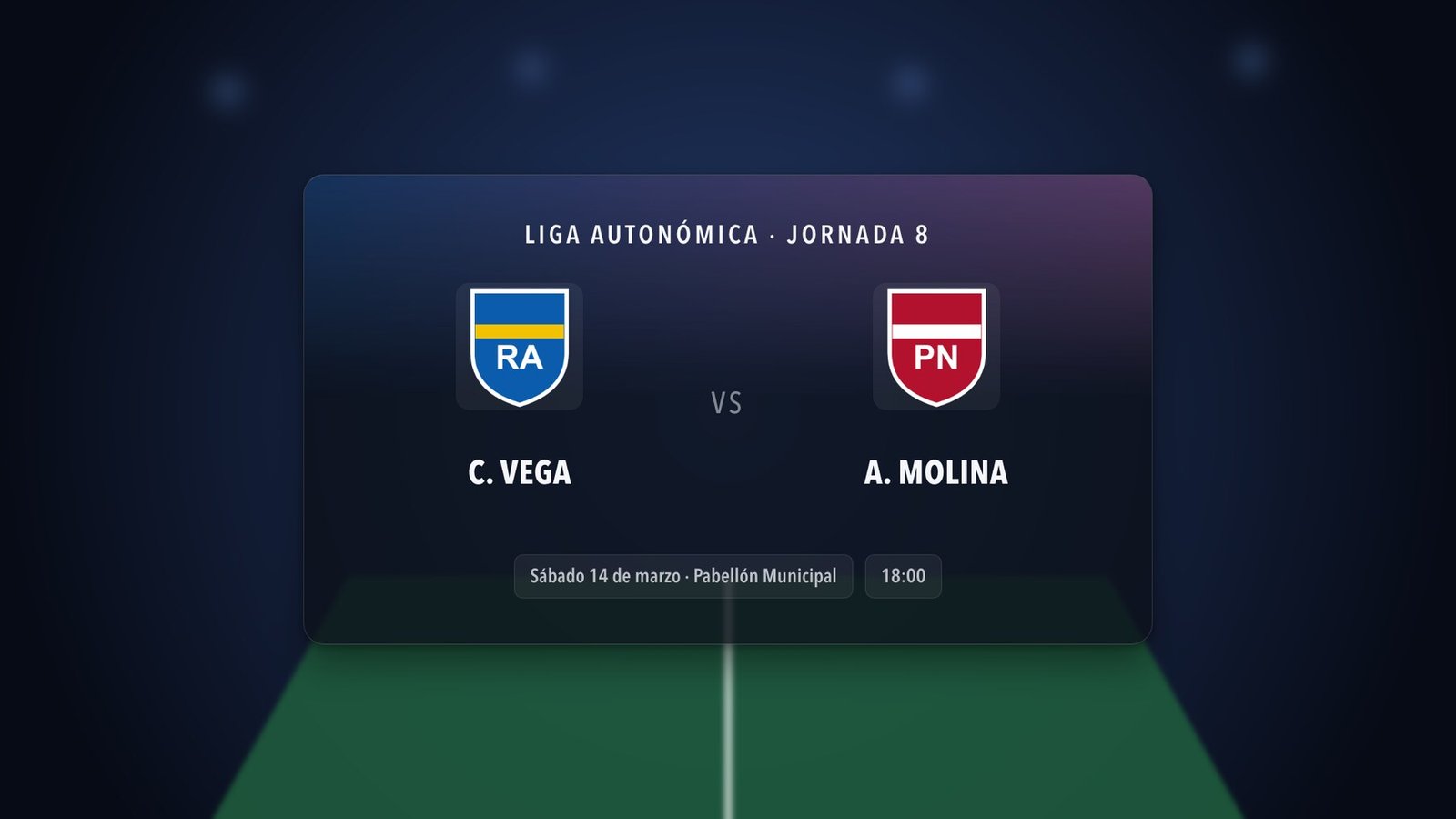
Line-up
Before play starts: event, date, venue, time, round and logo.
-
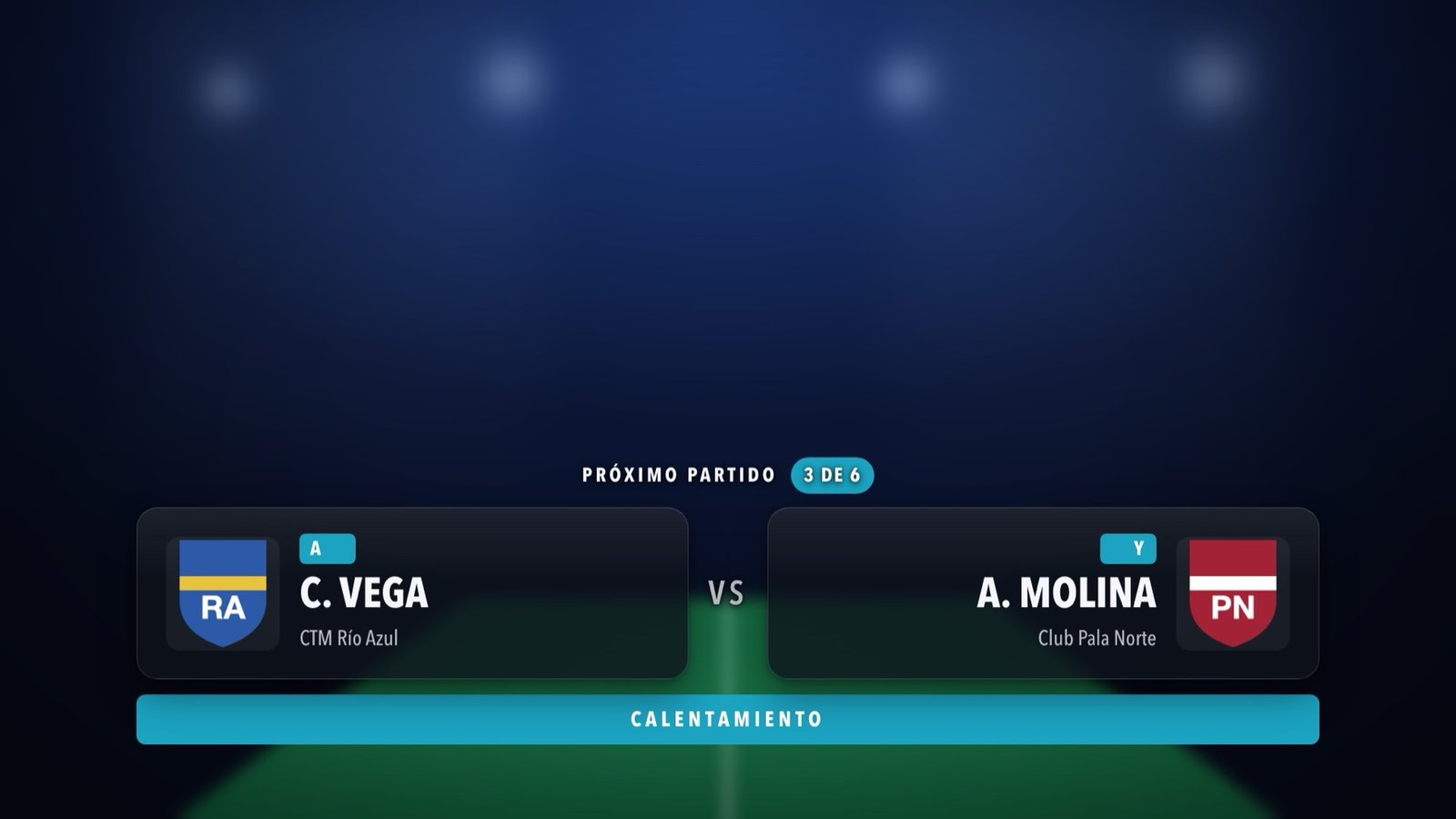
Warm-up
The two players of the next match, with their letter, their club and their crest.
-
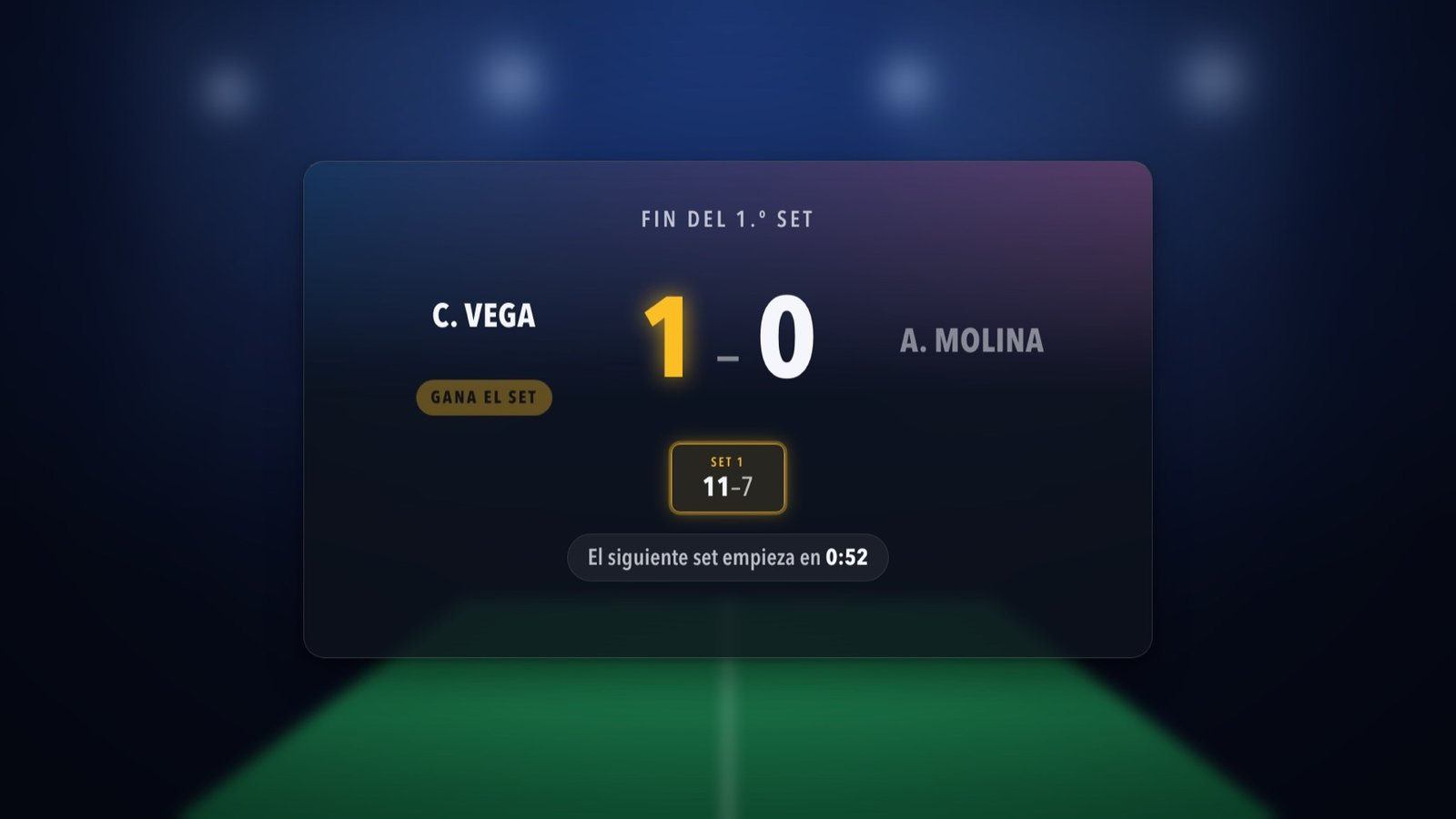
End of game
The games, the winner of the last one flashing and the one-minute break counting down.
-
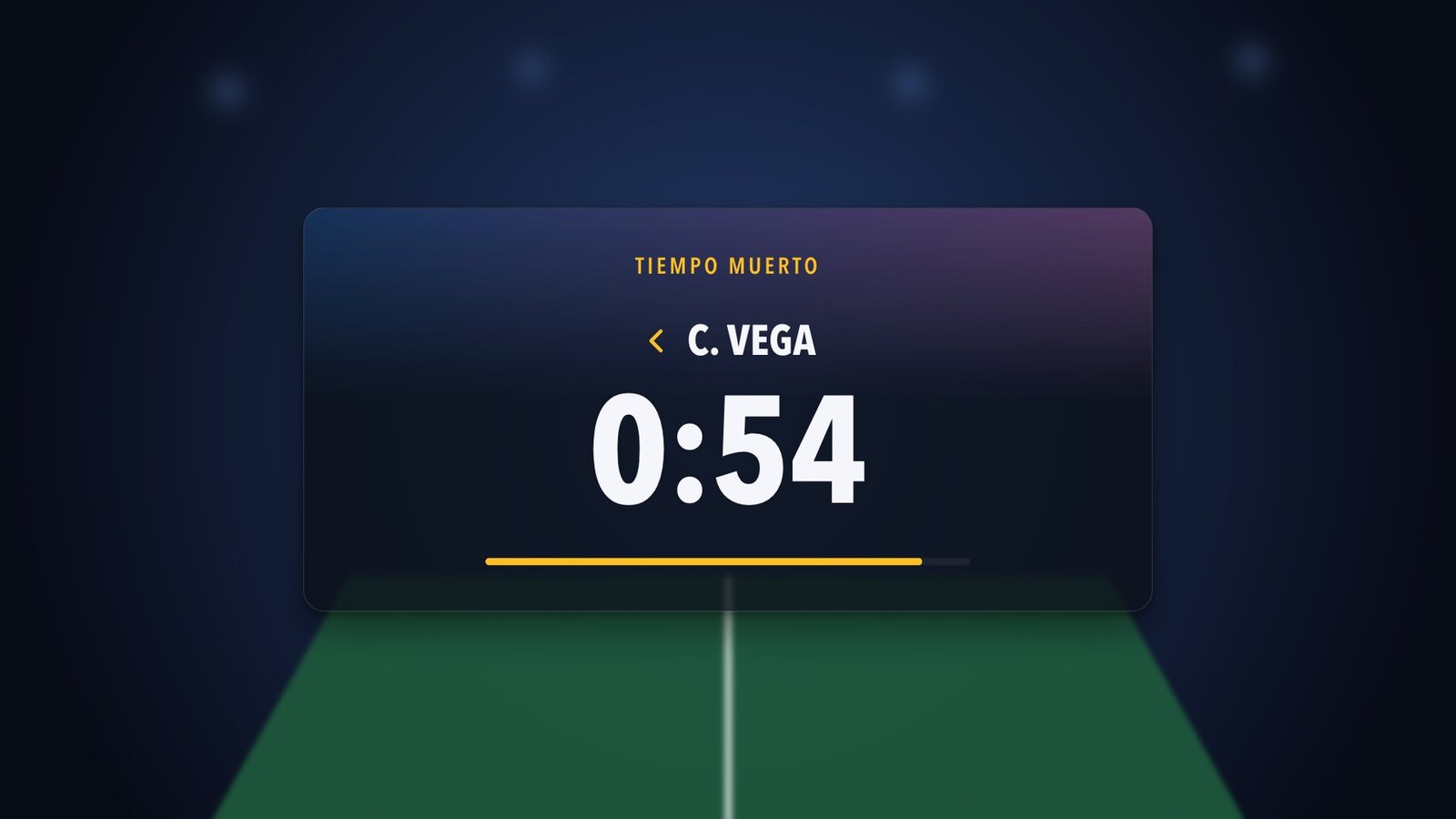
Timeout
Who called it and the countdown on screen.
-
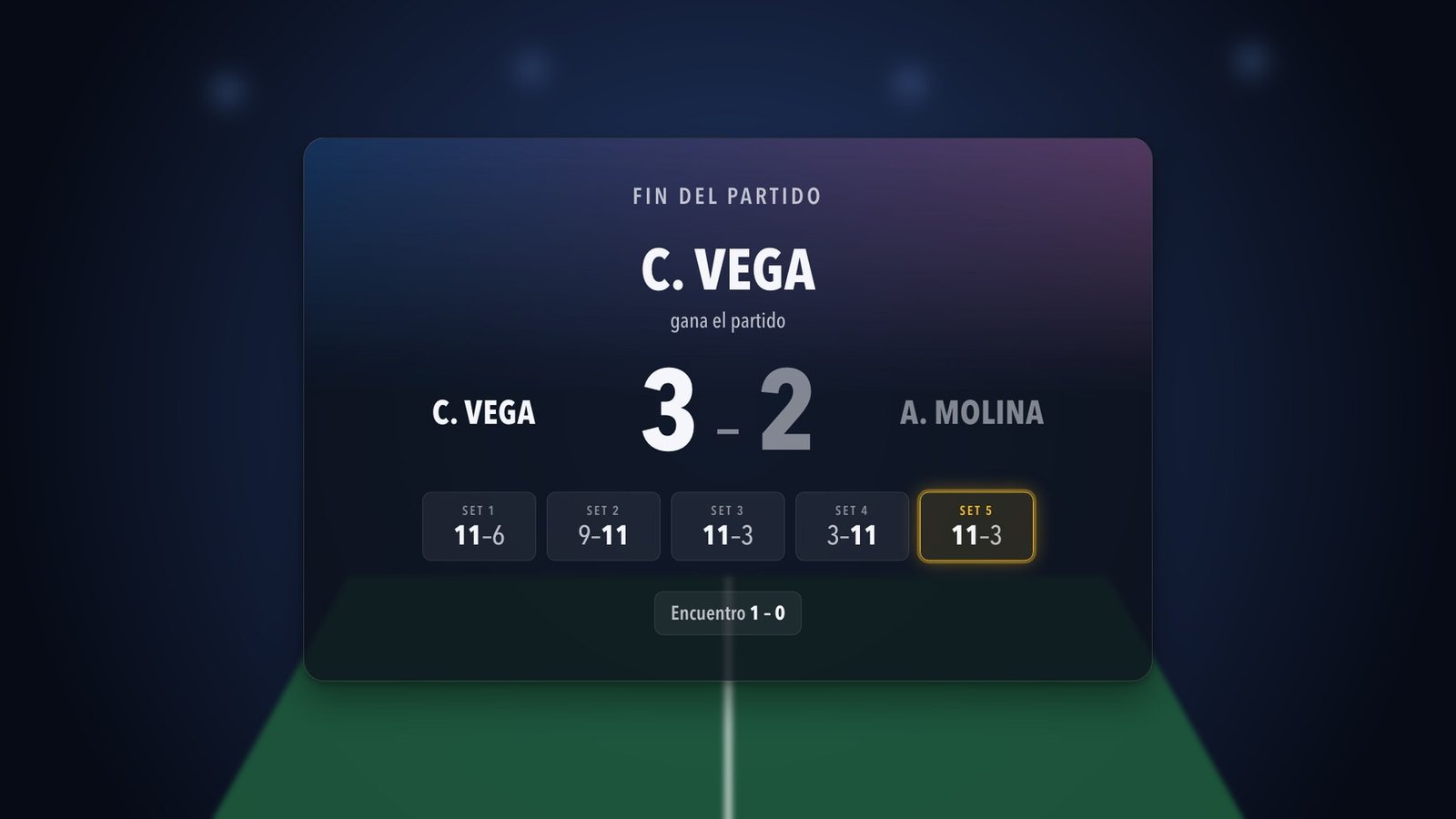
End of match
The winner and every game. It stays on until the next match.
Sponsors
Your club’s sponsor ads, inside the stream
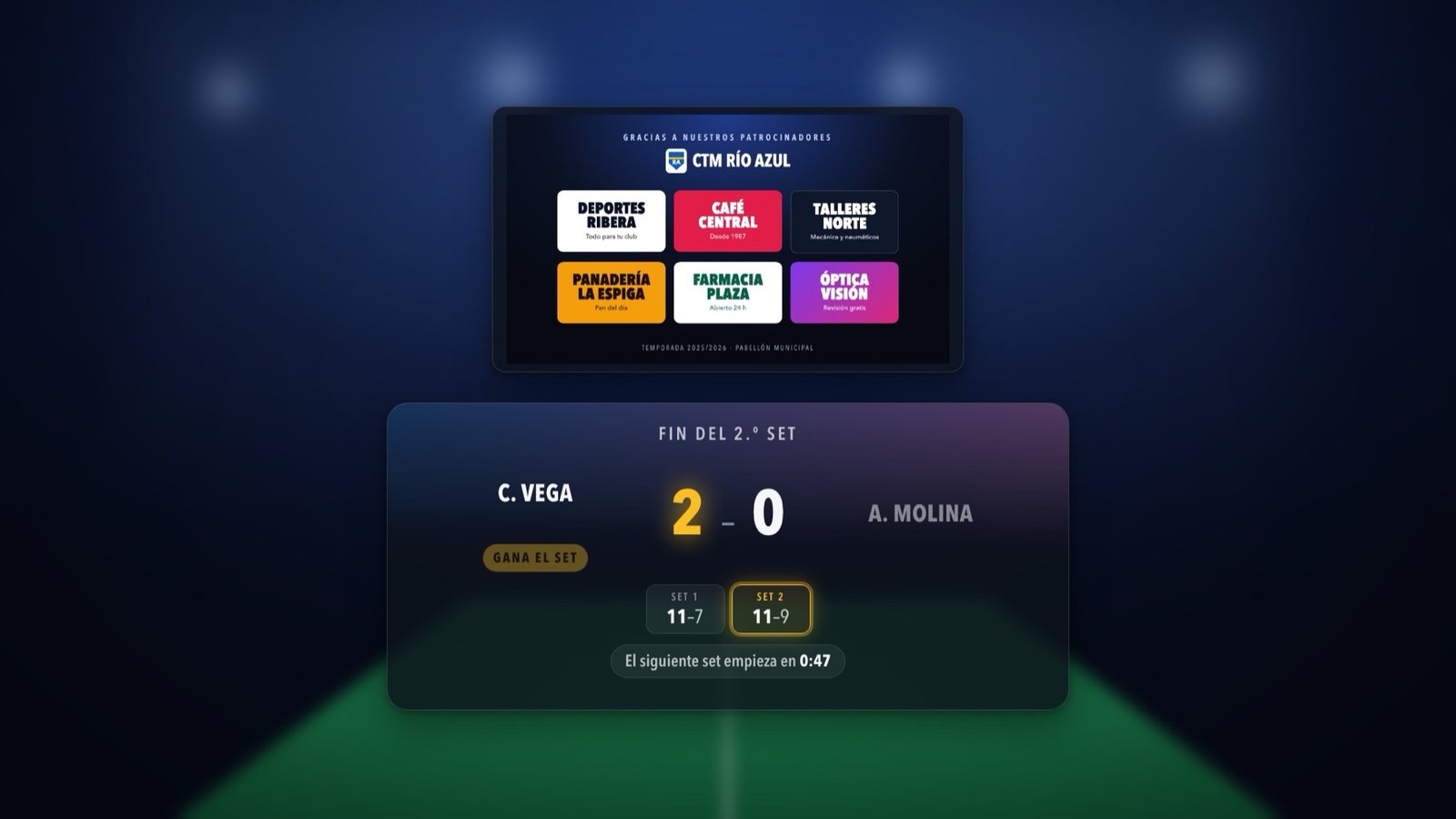
Your sponsors’ slideshow goes into the broadcast without removing the scoreboard or stopping the match.
- During play, in a small box in the corner you choose.
- At the end of a game, end of match, timeout and warm-up, at the top and large.
- With the Ads button in the app, on the phone or on the Stream Deck, or automatically.
- The same images appear on the venue TV.
Who keeps score
Your hands free for the camera
If you’re also running the stream, let the umpire keep score from their phone, or use keyboard shortcuts and a Stream Deck: they work with the app in the background, behind OBS.
Umpire’s phone
They scan a QR code and have the remote right by the table, with nothing to install. With an access code that changes every session.
Keyboard
One key per action: point, serve, change of ends and timeout, without looking at the screen.
Stream Deck
A physical button for each action, including showing and hiding the ads.
Frequently asked questions
Questions about the OBS scoreboard
Do I need to install an OBS plugin?
No. It uses the Browser source that OBS already has, with the address http://127.0.0.1:8765/obs at 1920 × 1080.
Does it work for streaming on YouTube and Twitch?
Yes. OBS streams to whatever platform you use and ScoreStudio Pro only puts the scoreboard on top of your picture, so it works for YouTube, Twitch or any other.
Do I need internet at the venue?
Not for the scoreboard: the Mac, the phone and OBS talk to each other over the venue’s Wi-Fi. You only need internet to stream the broadcast.
Nothing shows in OBS. What do I do?
Check that the app is open, that the panel says OBS output on in green and that the source is a Browser source with the right address and size. If it still doesn’t show, right-click the source in OBS and choose Refresh.
Do the ads cover the scoreboard?
No. During play they sit in a corner away from the scoreboard, and on the end-of-game, end-of-match and warm-up screens they go above the banner, which narrows by itself so both can be seen.
Is it the same scoreboard the venue sees?
Yes. The same app runs the OBS overlay, the big scoreboard on the TV or projector and the match sheet at the same time, so everything always stays in sync.
The OBS scoreboard overlay → Live stream scoreboard → OBS setup in the documentation →
Your next stream, just like on TV
Try the full app free for 3 days, no card needed. For Macs with macOS 15 or later.