ScoreStudio ProOBS Scoreboard
Table tennis · OBS Studio · macOS
Table Tennis Scoreboard Overlay for OBS: Five Designs
Pick the look of your OBS scoreboard. ScoreStudio Pro has five table tennis overlay designs, from the rounded Glass panel to a championship-style Tournament overlay with your event logo, and all of them come from a single browser source.

Five overlays
Choose Your Scoreboard Overlay Design
The designs change the shape of the scoreboard, not just its color. You pick one in Settings → OBS overlay. The images show each design with its default colors.
 Glass
 TV
 Inline
 Light
 Tournament
Glass
A rounded dark panel with the two players stacked, their crests, the serve marker, the cards and the points of each game.
TV
The classic television look: a navy panel with a white edge on the left, bold names and the serve marker in lime.
Inline
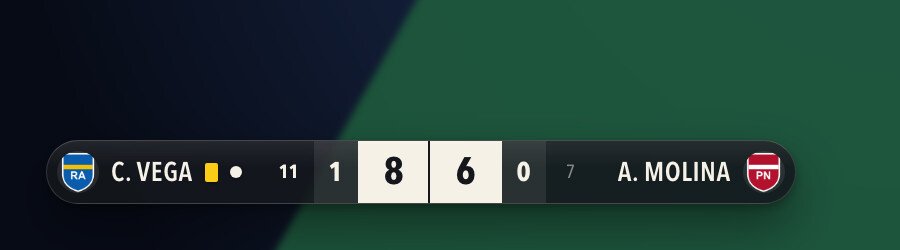
One slim line instead of two rows, with a player at each end and the score in the middle. It takes the least height on screen.
Light
A light panel with dark text and a dark score box: the opposite look to Glass and TV.
Tournament
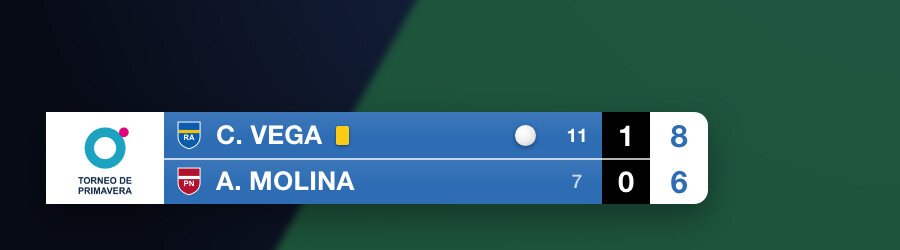
Championship style: the event logo on the left and, in team matches, the club or country codes with the matches won above.
Sponsor ads inside the stream
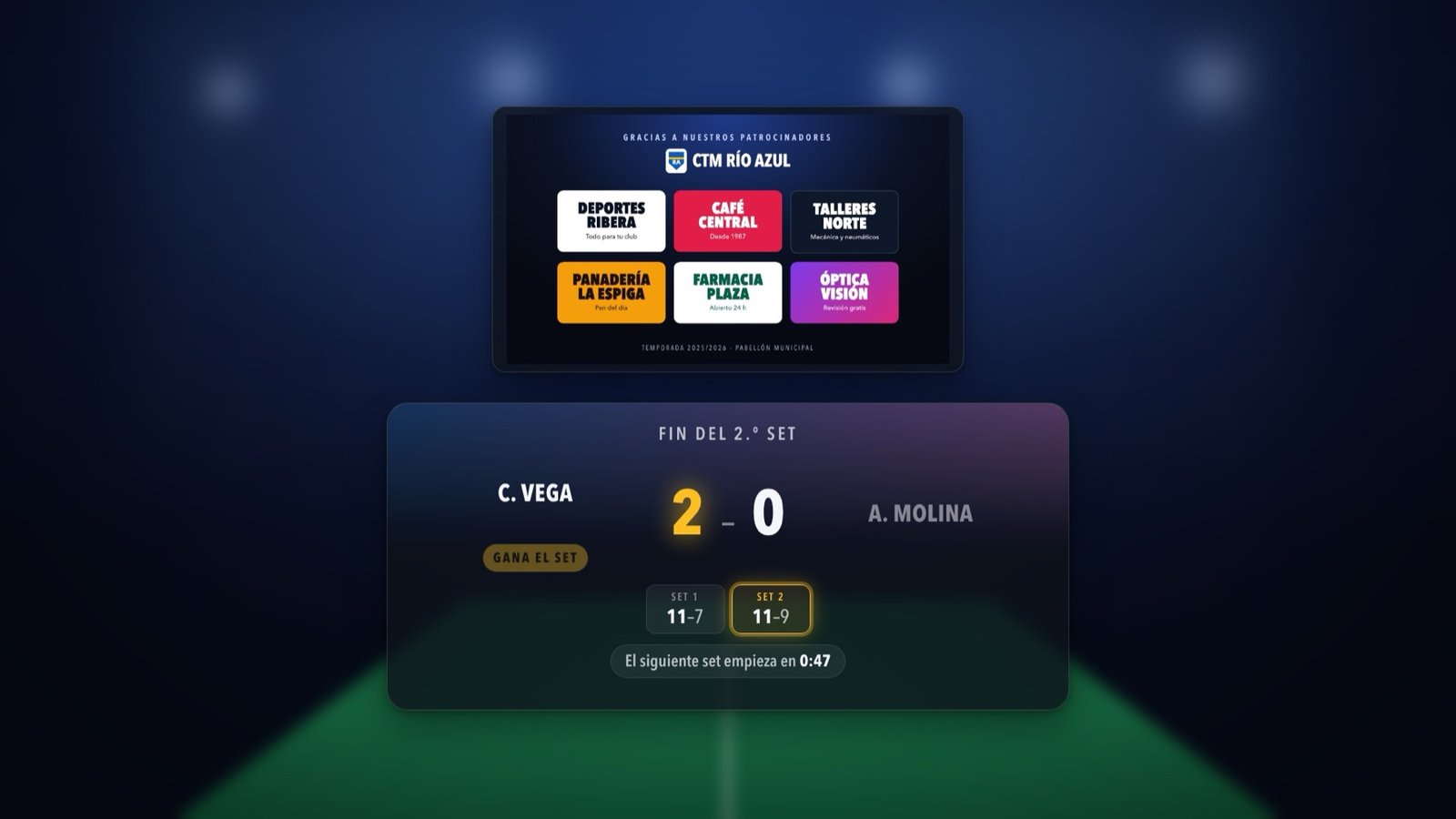
Your sponsors' slideshow goes into the broadcast without removing the scoreboard or stopping the match: in a small box in the corner you choose during play, and large at the end of a game, end of match, timeout and warm-up. Show it with one button, or let it appear automatically.
On every design
What Every OBS Scoreboard Overlay Shows
Streaming your club's matches doesn't have to look homemade. Whichever design you choose, the overlay shows the players, the points, the games, who is serving, the cards and the timeouts, and it is transparent so your picture stays visible behind it.
Made for table tennis
Games to 7, 11, 15 or 21 points, best of 1, 3, 5 or 7. Serve, deuce and change of ends are handled automatically, so you only add points.
Team matches included
For league matches the overlay also shows the team match score, following the official order of the six singles.
Readable over any video
Each design comes with colors chosen to read well over any picture, and you can set your own.
Personalise it
Customise Players, Teams and Club Logos
Make the broadcast look like your club. Save your players once, drag in the crests, and choose what appears next to each name.
Crest, flag or shirt
Next to each player's name: all three, two, one or none. You drag the crests in from the Finder once and they appear on every screen.
Players and teams
A players database with club, category and status, with Excel import and export, so choosing the players for a match takes a click.
Your colors
Each overlay comes with colors designed to read over any video, and you can set your own background and name and number colors.
Automatic screens
Screens That Appear on Their Own
The same browser source also shows five screens by itself. In team matches the end-of-game and end-of-match screens appear when you confirm in the app, not on the last point, so a result that needs correcting never goes on air.
- Line-up: event, date, venue, time, round and logo, before play starts.
- Warm-up: the two players of the next match, with their letter, club and crest.
- End of game: the games and the one-minute break counting down.
- Timeout: who called it and the countdown on screen.
- End of match: the winner and every game, until the next match.
How it works
How ScoreStudio Pro Works with OBS Studio
ScoreStudio Pro keeps the score and serves the overlay as a web page from your Mac. OBS shows that page on top of your video. There is nothing to install in OBS.
-
1
You keep score
From the Mac, from a phone next to the table or with a Stream Deck. The app tracks serve, games and change of ends by itself.
-
2
The app serves the overlay
The overlay page lives inside the app, at an address on your own Mac. It updates the instant the score changes.
-
3
OBS shows it on your stream
A single Browser source in OBS displays the overlay, so it goes out to YouTube, Twitch or any platform you stream to.
No internet is needed to run the scoreboard: the Mac, the phone and OBS talk to each other over your local network. You only need internet to send the stream itself.
Adding the overlay to OBS takes one Browser source, and the step-by-step guide shows every click. New to streaming? Follow the guide to live stream a table tennis match with OBS.
OBS setup in the documentation → Step-by-step guide: table tennis scoreboard for OBS → Learn more about our live stream scoreboard → All features →
Remote control
Control Your OBS Scoreboard Remotely
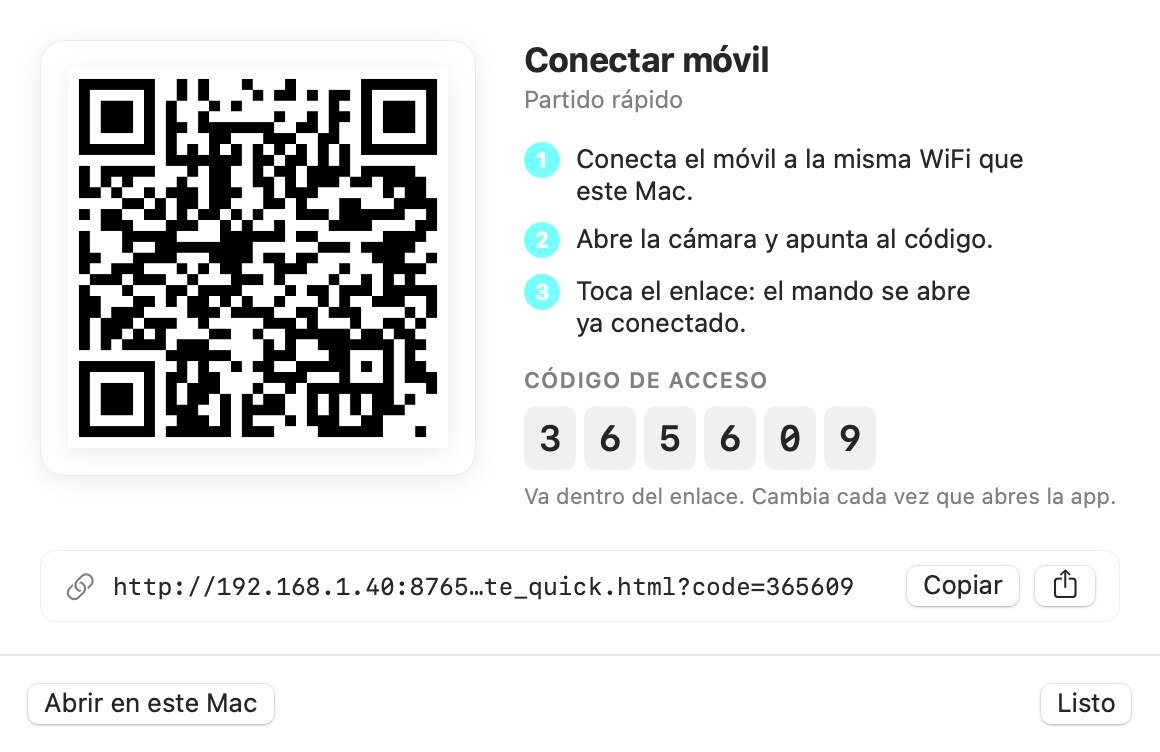
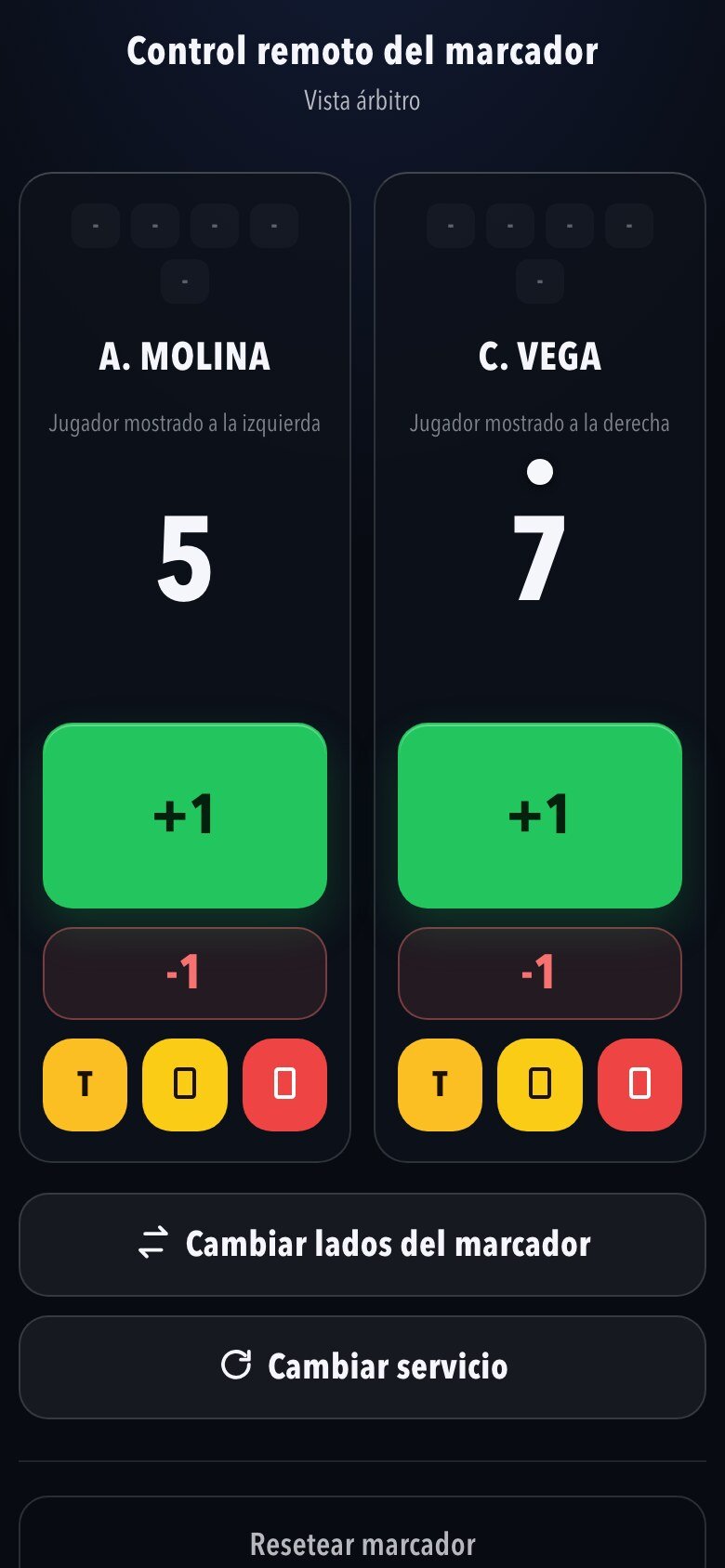
If you are also running the stream, let the umpire keep score from their phone. Scan a QR code and the remote opens, with nothing to install, on any phone or tablet.
- Big buttons for points, serve, change of ends, cards and timeouts.
- A security code that changes every session, so nobody else on the Wi-Fi can touch your scoreboard.
- Several remotes can be open at once, and everything stays in sync.
- Keyboard shortcuts work even when OBS is in front of the app.
Stream Deck
Stream Deck Control for Live Broadcasts
When your hands are busy with the camera and the mixer, a physical button for each action is the fastest way to run the scoreboard.
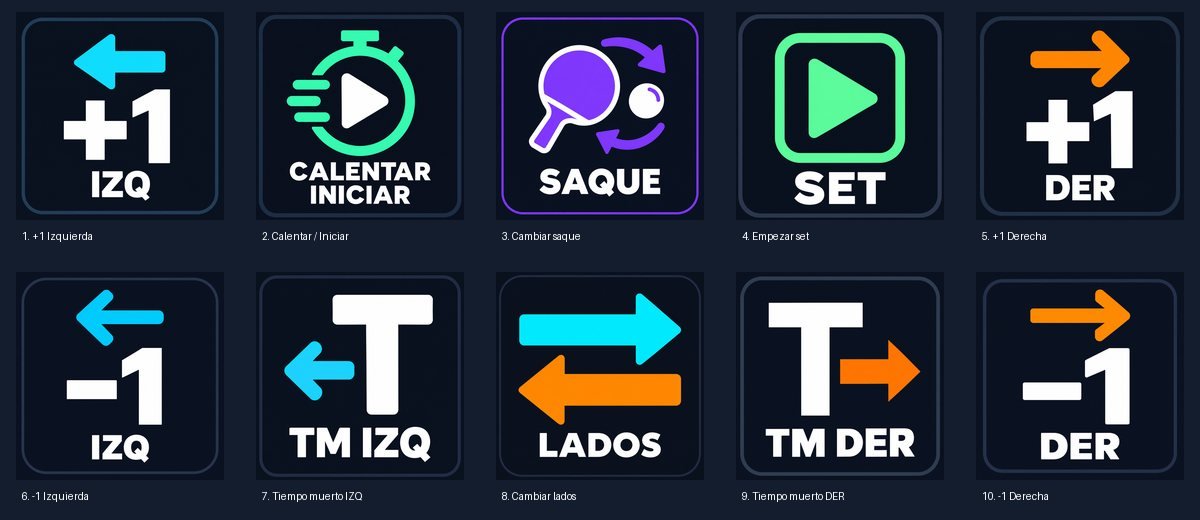
- Point, remove point, timeout, serve, switch sides, warm-up and set, each on its own key.
- No plugin: the keys talk to the app on the same Mac, with no internet.
- A ready-made ten-key profile is included as a gift with the first licenses.
Stream Deck setup → Using a Stream Deck with the scoreboard →
Frequently asked questions
Frequently Asked Questions About the OBS Overlay
Which overlay designs are there?
Five: Glass, TV, Inline, Light and Tournament. You choose one in Settings → OBS overlay. They change the shape of the scoreboard, not only its color.
Can I use my own colors?
Yes. Each design comes with default colors chosen to read well over any video. You can instead choose your own background and the color of names and numbers.
Can I show my club's crest or logo?
Yes. Next to each name you can show the club crest, the country flag or a shirt in the team's color: all three, two, one or none. You drag the crests in from the Finder once and they appear on every screen. The Tournament design also shows the event logo on the left.
Can I use it as a ping pong scoreboard overlay?
Yes. Ping pong and table tennis are the same sport, and ScoreStudio Pro follows the table tennis rules: games to 7, 11, 15 or 21 points, serve, deuce and change of ends.
Is the overlay transparent?
Yes. The overlay has a transparent background, so your camera picture stays visible behind the scoreboard.
Is there a Windows version?
It's coming soon. For now ScoreStudio Pro runs on a Mac with macOS 15 or later. The phone remote works in the browser of any phone, iPhone or Android.
Download ScoreStudio Pro
Try the full app free for 3 days, no card needed. For Macs with macOS 15 or later.