ScoreStudio ProDocumentationStream Deck Setup
Documentation
Stream Deck Setup
With an Elgato Stream Deck you keep score with real keys, without looking at the screen: a point, a timeout, a serve change. The keys talk to ScoreStudio Pro inside your own Mac, with no plugin and no internet.
What you need
- An Elgato Stream Deck and the Stream Deck app.
- ScoreStudio Pro, version 3.4 or later, open on the same Mac.
The ready-made profile
The profile has ten keys in two rows, laid out like the app's own panel, with custom icons. It is made for the 15-key Stream Deck, and the bottom row is left free for your own keys.
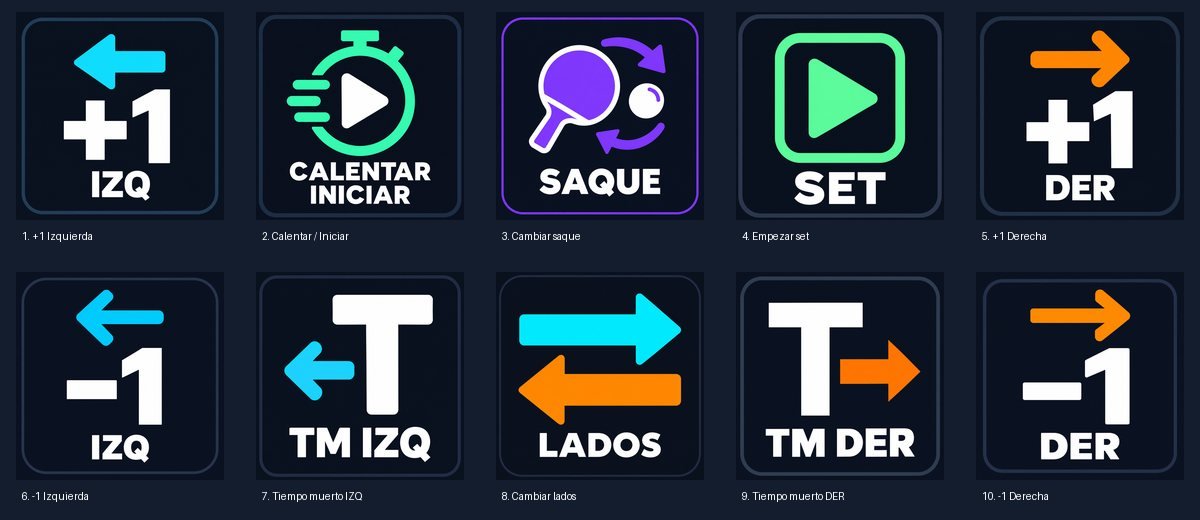
| 1 | 2 | 3 | 4 | 5 | |
|---|---|---|---|---|---|
| Top row | +1 left | Warm-up / Start | Serve | Game | +1 right |
| Bottom row | −1 left | Timeout left | Swap sides | Timeout right | −1 right |
The key labels are in Spanish: IZQ is left, DER is right and TM is timeout.
The profile is a launch gift with the first licenses. You download it from the page you see after paying, and the link also arrives in your license email.
Install it
- Open the Stream Deck app. If you already have ScoreStudio profiles from an earlier trial, delete them first: Stream Deck doesn't replace a profile with another of the same name, and the old ones would keep calling old addresses.
- Double-click the downloaded file, which is called
ScoreStudio-Pro-Stream-Deck.streamDeckProfile. Stream Deck imports it. - In the profile menu of Stream Deck, choose ScoreStudio Pro 3.4+.
- Open ScoreStudio Pro, start a match and try a key.
The keys that do two things
To keep the Stream Deck uncluttered, three keys change function depending on the moment of the match, just like the buttons in the app:
- Warm-up / Start: the first press starts the warm-up and the next one starts the match. It is the Warm-up button of the panel, so it only exists in team matches. In a quick match it does nothing.
- +1 left and +1 right: add a point. But if the app is asking who serves, they answer that instead: the side you press will serve.
- Game: with the end-of-game notice on screen, it confirms it (Continue). In a team match, if the one-minute break is running, it starts the next game (Start game).
A team match with the Stream Deck
- Warm-up / Start: the two players who are up next are introduced on the stream while they warm up.
- Warm-up / Start again: the app asks who serves.
- +1 left or +1 right, depending on who serves. The match begins.
- During the game, the +1 and −1 keys, the timeouts, Serve and Swap sides.
- When a game is won, Game confirms the notice, and Game again starts the next one. On the last game, it confirms the end of the match.
- Warm-up / Start moves on to the next match, and you start over.
If you click Cancel with the mouse in the "who serves" notice, the app goes back to the warm-up with the players in place. Warm-up / Start opens the question again.
Build your own keys
If your Stream Deck is another model, or you want a key of your own, for example one for the ads, each key is a normal Stream Deck action:
- In the Stream Deck app, drag the Website action onto a button.
- Tick GET request in background.
- Paste the address of the action you want. You have all of them in Connections and OBS → Stream Deck, each with a copy button.
The addresses are on your own Mac, in the form http://127.0.0.1:8765/…, so the keys work without internet.
If the keys do nothing
Check that ScoreStudio Pro is open, that it is version 3.4 or later and that you are using the ScoreStudio Pro 3.4+ profile. The troubleshooting guide has the rest.
Read more about using a Stream Deck with the scoreboard in this article.
Still stuck? Write to us
ScoreStudio Pro is made by one person, so the person who programmed the app answers. Tell us which Mac and which version of macOS you have, and what you were doing.