ScoreStudio ProDocumentationLogos
Documentation
Club Logos and Crests
Add the crests of the two teams once and they appear everywhere: on the venue screen, in OBS, on the line-up screen and on the match sheet.
Add a crest
- Open Crests from the start screen or from the match panel.
- Drag the image of each crest from the Finder into its box, or click Choose….
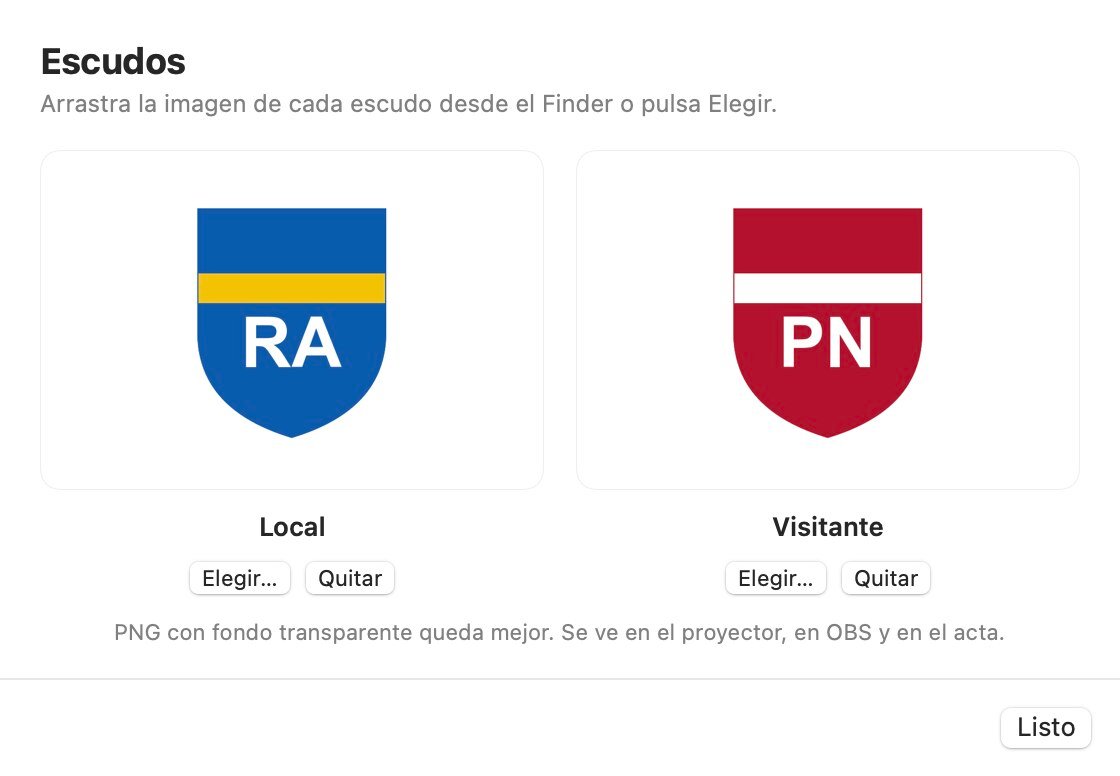
A PNG with a transparent background looks best. To remove a crest, use Remove this crest next to it.
Where crests appear
- The venue screen, if you leave crests on in Settings → Projector or TV.
- OBS, next to each player's name in the overlay, together with the country flag and the shirt color. You choose which of the three to show in Settings → OBS overlay: all three, two, one or none.
- The line-up and warm-up screens in OBS.
- The match sheet.
The event logo
The line-up screen has its own logo for the event or the competition. Click Edit… on the line-up and set the logo, together with the event name, the date and place, the time and the round. The Tournament overlay also shows the event logo on the left.
Colors and backgrounds
Beyond the crests, each scoreboard can use your colors. In Settings → Projector or TV you choose the design, the color of names and numbers, and a color or an image of your own as the background. In Settings → OBS overlay you choose the default colors of each design or your own. On the venue screen, going back to the original design leaves it as it came.
Still stuck? Write to us
ScoreStudio Pro is made by one person, so the person who programmed the app answers. Tell us which Mac and which version of macOS you have, and what you were doing.