ScoreStudio ProDocumentationOBS Setup
Documentation
OBS Setup
If you stream your matches with OBS Studio, ScoreStudio Pro puts the scoreboard on top of your video, like on television. You set it up once, with a single Browser source.
Add the scoreboard to OBS
- Open OBS and choose your match scene. OBS and ScoreStudio Pro must run on the same Mac.
- Under Sources, click + and choose Browser. Give it a name, for example “Scoreboard”.
- In URL enter
http://127.0.0.1:8765/obs. - Set Width to 1920 and Height to 1080, and click OK.
That is it. That single source switches by itself between the scoreboard, the end-of-game screen, the timeout, the end of the match and the line-up. The address is also in Connections and OBS, with a button to copy it.
Streaming a whole match? Read how to live stream a table tennis match with OBS.

Turn on the OBS output
When you open the app the OBS output starts switched off, on purpose: nothing appears in the stream until you click Turn on OBS output in the match panel (⌘ ⇧ O). It also turns on by itself when you use the line-up, the ads or the warm-up.
The Turn off OBS output button removes everything from the stream at once, for example while you are showing an ad break.
Choose your overlay
Pick the design in Settings → OBS overlay. They change the shape of the scoreboard, not only its color.
- Glass
- TV
- Inline
- Light
- Tournament: the event logo on the left and, in team matches, the club or country codes with the matches won above.
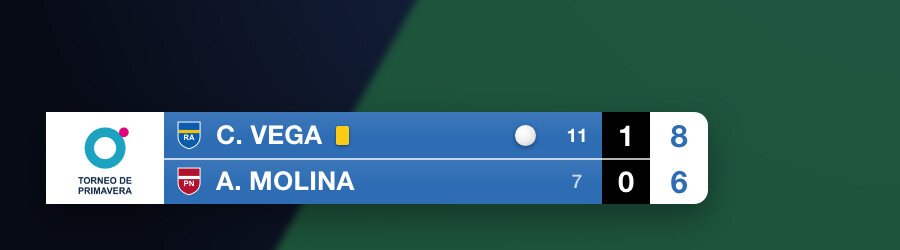
Each design comes with default colors chosen to read well over any video. You can instead choose your own background and the color of names and numbers. Next to the name you can show the club crest, the country flag or a shirt in the team's color: all three, two, one or none.
The screens that appear on their own
- Line-up: event, date, venue, time, round and logo, before play starts.
- Warm-up: the two players of the next match, with their letter, club and crest (team matches).
- End of game: the games, the winner of the last one flashing and the one-minute break counting down.
- Timeout: who called it, and the countdown.
- End of match: the winner and every game. It stays on until the next match.
During play the overlay comes back, with the team match score above it. In team matches these screens appear when you confirm the game or the match in the app's notice, not when the last point is entered, so you decide what the audience sees. See team setup for the sequence.
The line-up screen
Click Edit… on the line-up to set the event name, the logo, the date and place, the time, the round, and the color and design of the screen. It is shown in OBS when you click the line-up button.
Sponsor ads inside the stream
The same slideshow you prepared on the Media screen for the venue TV can appear inside the stream, without removing the scoreboard or stopping the match. Show it and hide it with the Ads button in the match panel. It is also on the phone remote and can be put on a Stream Deck key.
- During play: in a small box in the corner you choose (top left, top right or bottom right), away from the scoreboard.
- End of game, end of match and timeout: at the top, with the data banner just below.
- Warm-up: at the top, above the two players.
In the Ads in OBS block below the slideshow you choose Manual (it appears only when you click Ads) or Automatic (it comes in by itself at the end of a game, end of a match, timeout and warm-up, after the number of seconds you set). The stream only shows images; video is for the venue TV. While the line-up screen is on, the Ads button is off so the two don't overlap.
If the scoreboard doesn't show
- The app must be open.
- The panel must say OBS output on, in green.
- The OBS source must be a Browser source with the address above and a size of 1920 × 1080.
- In OBS, right-click the source and choose Refresh.
More fixes are in the troubleshooting guide.
Still stuck? Write to us
ScoreStudio Pro is made by one person, so the person who programmed the app answers. Tell us which Mac and which version of macOS you have, and what you were doing.