ScoreStudio ProDocumentationTeam Setup
Documentation
Team Match Setup
A league match between two teams: three players per team, six singles and, if it is tied at 3–3, a deciding doubles. This guide covers the whole match day, from the line-up to the match sheet.
Prepare the team match
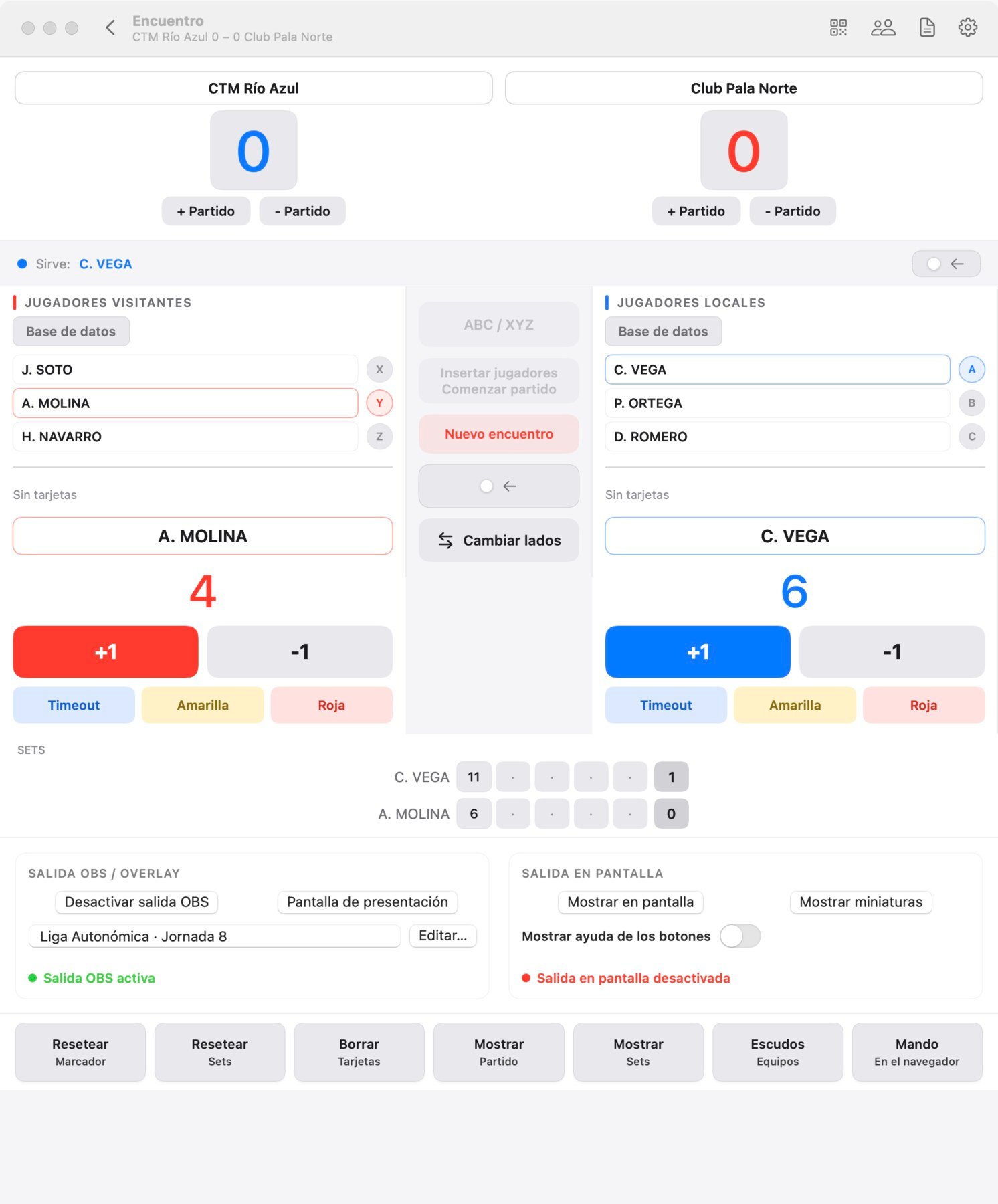
- On the start screen click Full team match (⌘ ⇧ N).
- Type the name of each team in the two boxes at the top.
- Add the players: type the three of each team, or click Database to pick them from your list.
- Choose which team plays as ABC and which as XYZ, as in the draw on the match sheet.
- Click Insert players. The app puts on the scoreboard the two players who play first, following the official order.
- Click Warm-up. On the stream, the two players are introduced while they warm up. When they are ready, Start match removes the presentation and asks who serves first.
The two new buttons. Start game and Warm-up sit below Swap sides. They light up when it is time to use them and stay dim the rest of the time, so there is nothing to remember: if one is lit, it is the one you need.
During the team match
At the top you see the result of the team match, and in the middle the match being played. Each match is scored like a quick match: see creating a match. The counters at the top show how many matches each team has won, and you can correct them by hand.
Between games: the one-minute break
- At the end of a game the app asks you to confirm. Click Continue, or Cancel if the last point was wrong.
- Only then does the stream show the end-of-game screen with a one-minute countdown. At zero the scoreboard comes back by itself and play continues.
- If the players come back sooner, click Start game: it cuts the minute short.
At the end of each match
- The notice asks you to confirm. Click Confirm match: the match is added to the winning team, and the stream shows the result with every game, which stays there for the audience.
- The app then asks whether you move on: Next match prepares it with the players already in place, and End team match closes the team match.
- When the next players go out to warm up, click Warm-up. When they are done, Start match asks who serves and brings the scoreboard back.
The warm-up screen follows the Swap sides button, so you can set it up as the players really stand at the table and have it ready for the match.
Tied at 3–3: the doubles
If the team match reaches 3–3, the app asks if you want to play the deciding doubles. Click Play doubles, choose the two pairs and play it like any other match. If you don't play it, click End team match.
The match sheet
When the team match ends, the app fills in the match sheet with every match and its score. You only add what it can't know: the venue, the coaches, the captains and the umpire. Save it as a PDF, send it by email or print it (⌘ P). The sheet remembers the details that repeat from one round to the next.
Your players database
Save the players of your club and your rivals once, and pick them with a click in every team match. Open it with the Players button or ⌘ J.
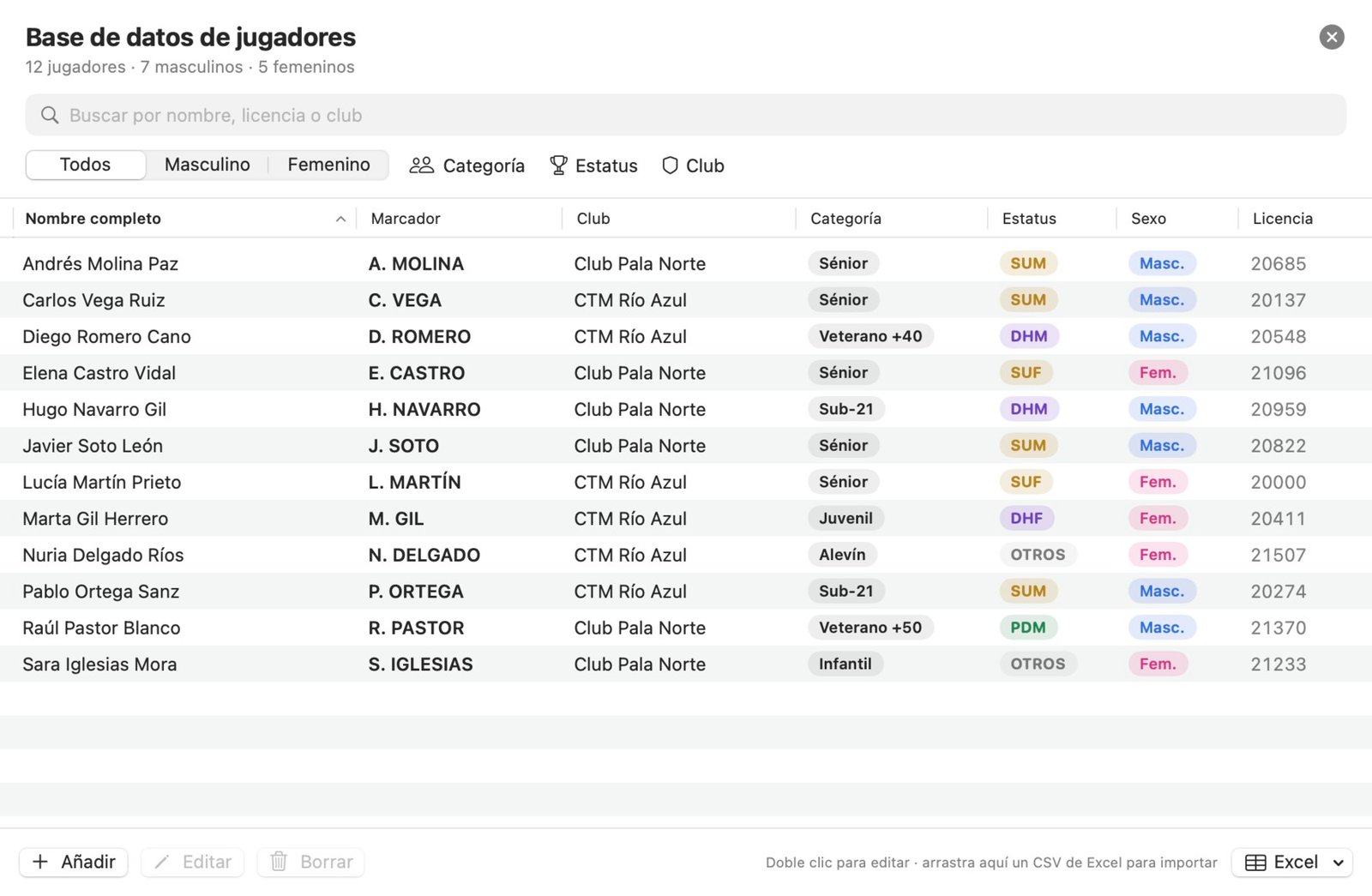
- Add opens the card of a new player: full name, name for the scoreboard, license, gender, category, status and club.
- Double-click a player to edit them, or select them and use Edit or Delete.
- Type a name, a license or a club in the search box, and filter by gender, category (from under-11 to veterans 75+), status and club. The filters combine.
Import players from Excel
- Click Excel and choose to save the template, then open it in Excel. It already has the columns.
- Fill in one row per player. Only the name is required. The other columns are license, scoreboard name, category, gender, status and club.
- Save it from Excel as a CSV.
- Click Import from CSV…, or drag the file onto the players window.
- The app shows what it will import before it does it. If a player is already there (same license or same name), it updates them instead of duplicating.
You don't have to use the template: the app recognises headings such as "Surname and name", "Player", "Team" or "License no.". Export to CSV… saves the list you are looking at, with its filters.
Still stuck? Write to us
ScoreStudio Pro is made by one person, so the person who programmed the app answers. Tell us which Mac and which version of macOS you have, and what you were doing.