ScoreStudio ProDocumentationGetting Started
Documentation
Getting Started with ScoreStudio Pro
ScoreStudio Pro keeps score of your table tennis matches on your Mac and shows it where you need it: the venue screen, your live stream and the umpire's phone. In five minutes the app is ready for your first match.
What you need
| For | You need |
|---|---|
| Using the app | A Mac with macOS 15 or later. |
| The venue screen | A projector or TV connected to the Mac (HDMI, AirPlay…). Optional. |
| Live streaming | OBS Studio, which is free, on the same Mac. Optional. |
| The remote | A phone or tablet on the same Wi-Fi as the Mac. Optional. |
| Physical buttons | An Elgato Stream Deck. Optional. |
You don't need internet to run the scoreboard: the Mac, the projector, OBS and the phone talk to each other on your local network. Internet is only needed to buy the license and to send a live stream.
Install the app
- Download ScoreStudio Pro from the download page. The app is signed and verified by Apple.
- Open the file you downloaded and drag ScoreStudio Pro to your Applications folder.
- Open it from Applications or Launchpad. The first time, your Mac may ask if you want to open it: click Open.
- If your Mac asks whether the app can receive network connections, click Allow. That is what lets OBS, the projector and your phone see the scoreboard.
The free trial and your license
The app works in full for 3 days so you can try it with your own matches. When the trial ends it asks for a license, and your players, crests and settings are still there.
- Buy a license on the pricing page. A key starting with
SSP-arrives by email and is also shown on the page after you pay. - Copy the whole key.
- In the app, click View license on the start screen (or wait for the app to ask), paste the key and click Activate license.
Licenses renew by subscription. Because the app works without internet, each time you are charged a new key arrives by email. Paste it into the app as you did the first time. You can cancel at any time from the link in each license email.
Changing Mac? In the license panel click Remove license from this Mac…, then activate the same key on the new computer.
The start screen
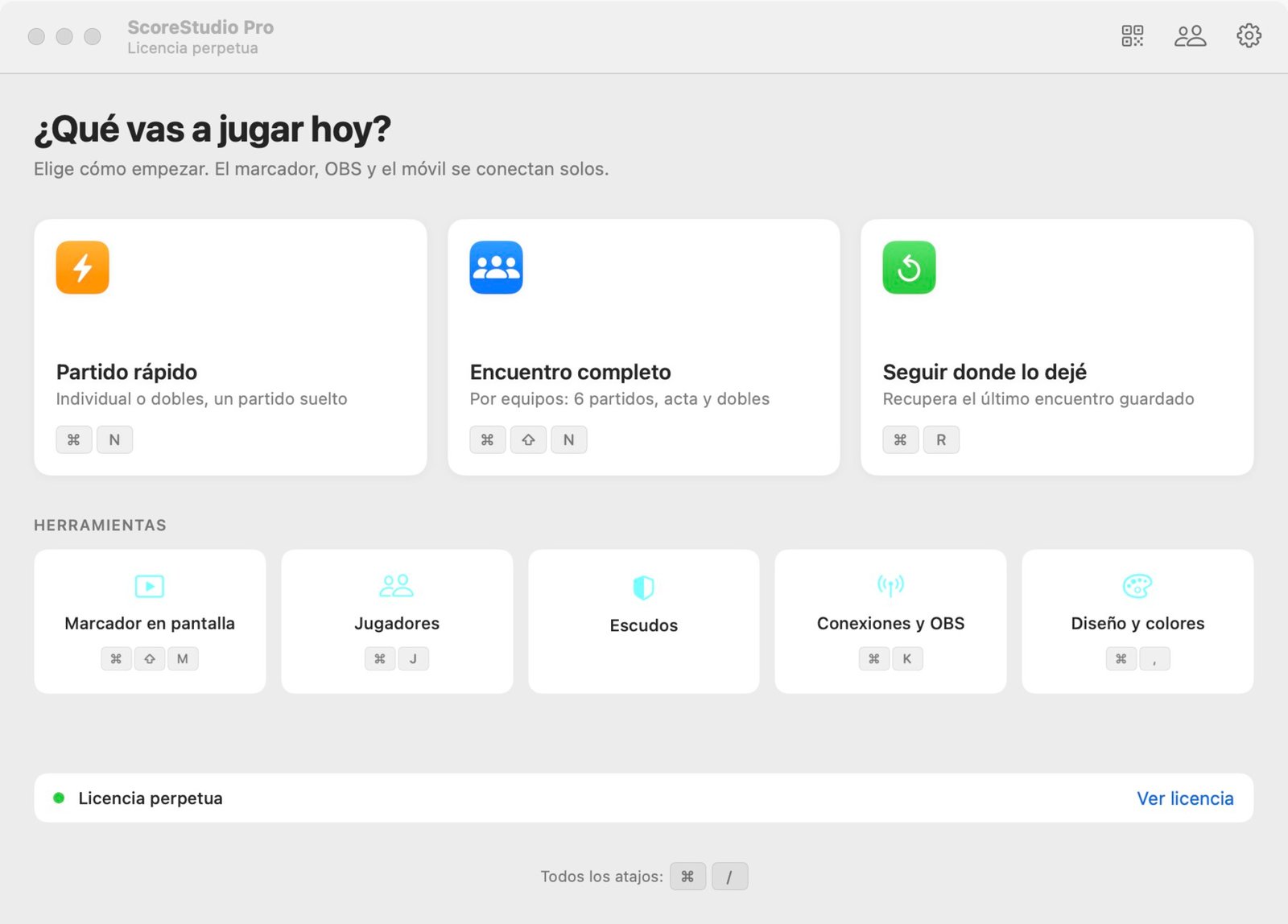
Every time you open the app it asks what you are playing today.
Three ways to start
- Quick match (⌘ N): a single match, singles or doubles. Ideal for training, tournaments or exhibitions.
- Full team match (⌘ ⇧ N): a league match between teams, with six singles, the deciding doubles and the match sheet.
- Continue where I left off (⌘ R): restores the last team match exactly as it was, for example if you closed the app by accident.
Tools
- Scoreboard on screen: opens the scoreboard on the projector or TV.
- Players: your players database.
- Crests: the club crests of the two teams.
- Connections and OBS: everything needed for OBS, the phone, the Stream Deck and the keyboard.
- Design and colors: the settings for all the scoreboards.
At the top right you always have three buttons: Connect phone (the QR code), Players and Settings. Hover over almost any button and it explains what it does.
What to read next
- Creating a match: your first quick match.
- OBS setup: put the scoreboard on your stream.
- Remote control: score from a phone.
Still stuck? Write to us
ScoreStudio Pro is made by one person, so the person who programmed the app answers. Tell us which Mac and which version of macOS you have, and what you were doing.